

The best 5GHz WiFi channel is the one your neighbors use least. For most homes in the United States, that means one of the non-DFS channels: 36, 40, 44, or 48 at the low end, or 149, 153, 157, 161, or 165 at the high end. These work with virtually every 5 GHz device and never have to shut down for radar.
If both of those blocks are crowded, the DFS channels from 52 to 144 are usually much emptier and can give a cleaner, faster connection. For the channel width, 80 MHz is the practical default for home use. Scan your surroundings first, then pick a channel and width that do not overlap with the strongest nearby networks. The same logic applies to every wireless channel choice: the best WiFi channel is the one with the least interference where you actually use your devices.
Which 5GHz channel to use: quick answer by situation
- House with few neighbors: channel 36 or 149 at 80 MHz. Auto mode also works well here.
- Apartment with many networks: scan, then use whichever 80 MHz block (36 to 48 or 149 to 161) is quieter. If both are busy, try a DFS block such as 100 to 112.
- Older devices, smart TVs, or streaming boxes that drop off: stay on non-DFS channels, because some older clients do not support DFS channels.
- Near an airport or weather radar: avoid DFS channels, especially 120 to 128.
- You want maximum speed: 160 MHz, but only if you have empty spectrum and your devices support it.
5GHz WiFi channels in the US
The 5GHz band is not one block but a set of available channels with different rules. The FCC divides the 5 GHz band into Unlicensed National Information Infrastructure (U-NII) sub-bands. Each 20 MHz channel has a number, and these channel numbers are what your router shows in its channel selection menu. Channels are spaced 20 MHz apart, so unlike 2.4 GHz, neighboring 20 MHz channels do not overlap.
| Sub-band | Frequency range | 20 MHz channels | DFS required | Notes |
|---|---|---|---|---|
| U-NII-1 | 5150 to 5250 MHz | 36, 40, 44, 48 | No | Supported by all 5 GHz devices |
| U-NII-2A | 5250 to 5350 MHz | 52, 56, 60, 64 | Yes | Shared with radar |
| U-NII-2C | 5470 to 5725 MHz | 100 to 144 | Yes | 120, 124, 128 overlap weather radar |
| U-NII-3 | 5725 to 5850 MHz | 149, 153, 157, 161, 165 | No | Supported by nearly all US devices |
| U-NII-4 | 5850 to 5895 MHz | 169, 173, 177 | No | Opened by the FCC in 2020, indoor use, newer equipment only |
Channel availability differs by country, so the list above applies to the United States. Your router’s region setting determines what it offers and the maximum power levels it may transmit at. The FCC’s rules for these bands are published on the FCC website.
DFS channels and radar
Channels 52 to 144 share spectrum with radar systems, including weather radar and some military and aviation radar. To use them, a router must support Dynamic Frequency Selection (DFS):
- Before transmitting on a DFS channel, the router listens for radar for at least 60 seconds. On channels 120, 124, and 128, which overlap terminal Doppler weather radar near airports, the check lasts 10 minutes.
- If the router detects radar while in use, it must leave the channel quickly and move to another one. Connected devices lose WiFi briefly during the switch.
- The router cannot return to that channel for at least 30 minutes.
The advantage is space. Many routers avoid DFS channels by default, so they are often nearly empty. The disadvantage is unpredictability: false radar detections can cause random disconnects, and some older phones, TVs, and IoT devices cannot see DFS channels at all. If a device cannot find your 5 GHz network after you switch to a DFS channel, that is the likely reason.
Is channel 52 good for 5GHz?
Channel 52 is a DFS channel in the U-NII-2A range. It works well if your router and all your devices support DFS and there is no radar nearby, and it is often less crowded than 36 to 48. If your router detects radar or a device cannot see the network, move back to a non-DFS channel.
5GHz channel width: 20, 40, 80, or 160 MHz
Wider channels bond several 20 MHz channels together. They carry more data, but they cover more spectrum, so they are more likely to overlap with neighbors and pick up interference.
| Width | Non-overlapping options in the US | Best for |
|---|---|---|
| 20 MHz | Up to 25 | Very crowded areas, maximum stability, IoT devices |
| 40 MHz | Up to 12 | Busy apartment buildings |
| 80 MHz | Up to 6 (2 without DFS) | Most homes, good balance of speed and reliability |
| 160 MHz | Up to 2 (plus one with U-NII-4) | Quiet areas with fast WiFi 6 or WiFi 7 devices |
At 80 MHz, the common non-DFS blocks are 36 to 48 (often labeled 36/80 or 42 as the center channel) and 149 to 161 (center channel 155). A 160 MHz channel on 5 GHz always includes DFS channels, except for the 149 to 177 block, which needs U-NII-4 support on both ends.
Is 80MHz or 160MHz better?
For most homes, 80 MHz is better. A 160 MHz channel doubles the peak rate, but on 5 GHz it usually overlaps DFS channels, it is twice as likely to collide with a neighbor’s network, and many phones and laptops cannot use it. Choose 160 MHz only if a scan shows the whole block is empty, your devices support it, and you need the extra throughput, for example for large file transfers near the router.
Is 40MHz good for 5GHz?
Yes, in crowded buildings. A 40 MHz channel gives up half the peak speed of 80 MHz but has twice as many non-overlapping options, so it is easier to find a clean one. A clean 40 MHz channel often delivers more real throughput than an 80 MHz channel that shares airtime with two neighbors.
In short: 20MHz for maximum stability, a 40MHz channel for crowded buildings, 80MHz as the everyday default, and 160MHz only for empty spectrum. Narrower channels also have a range benefit. The router spreads the same power over less spectrum, so a 20 or 40 MHz connection holds up slightly better at the edge of coverage and gives slightly better range.
What causes interference on 5GHz channels
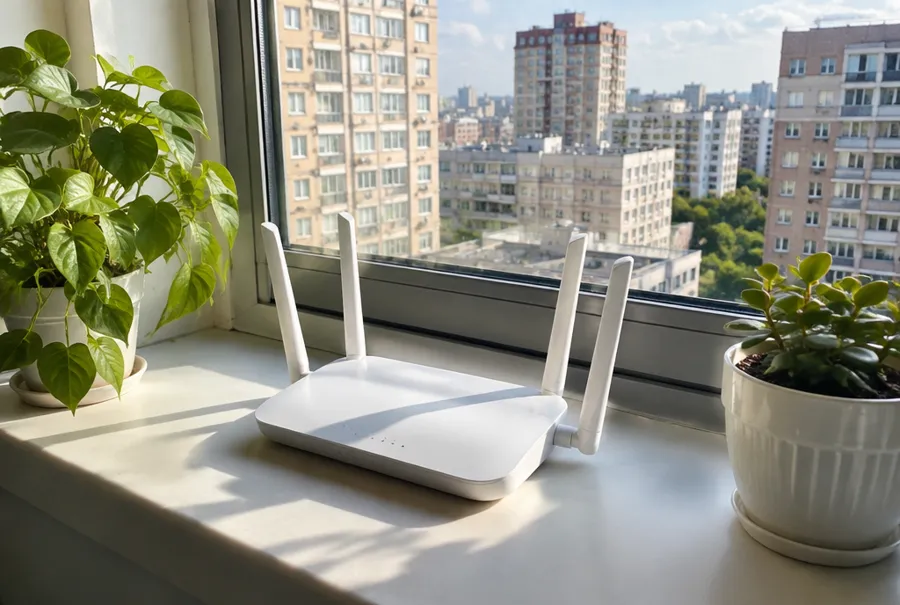
Most interference on 5 GHz comes from other WiFi networks. Co-channel interference happens when nearby access points use the same channel and must take turns. Adjacent-channel interference happens when wide channels partly overlap. Unlike 2.4 GHz, the 5 GHz band has few non-WiFi sources, although some cordless phones, wireless video senders, and radar on DFS channels can play a role. Walls and floors weaken 5 GHz signals more than 2.4 GHz, which reduces interference from neighbors but also shortens your own range. To avoid interference, pick a channel that no strong neighbor uses, reduce channel width if needed, and place the router centrally so your devices get a strong signal over the noise.
How to find the best 5GHz channel
Look at which channels nearby networks use and how strong they are. A channel with one strong neighbor is worse than a channel with three very weak ones.
- Router: many routers have a built-in channel scan or show nearby networks in their admin page or app.
- Windows: open Command Prompt and run
netsh wlan show networks mode=bssidto list networks with their channels and signal strength. - macOS: hold the Option key, click the WiFi icon, open Wireless Diagnostics, then choose Window and Scan.
- Linux: run
nmcli dev wifi listin a terminal. - Android: free WiFi analyzer apps display channels and signal strength as a graph.
- iPhone and iPad: Apple’s AirPort Utility app includes a WiFi scanner that can be turned on in its settings.
Scan from the rooms where you use WiFi most, not only next to the router, and at different times of day. Then choose the quietest channel and width, save the setting, and test speed in the same rooms.
Auto or manual?
Modern routers and mesh WiFi systems pick channels automatically and re-check them over time. In quiet areas, auto mode is fine. In dense buildings, or if the router keeps landing on a crowded channel, a fixed manual channel is often more stable. Some routers skip DFS channels in auto mode unless you enable them.
How to change the WiFi channel on your router
- Open the router’s admin page in a browser (often an address such as 192.168.0.1 or 192.168.1.1, printed on the router label) or open the router’s app.
- Go to the wireless or WiFi settings and select the 5 GHz band.
- Change the channel from Auto to a specific channel, and set the channel width.
- Save the settings. Devices disconnect briefly and reconnect on the new channel.
- Run a speed test in the rooms you care about and compare with the previous result.
Best 5GHz channel for gaming and streaming
Gaming and video streaming need a stable connection more than peak speed. Use a non-DFS channel such as 36 or 149 so that a radar event never forces a channel change during a game, choose 80 MHz or 40 MHz depending on how crowded your area is, and keep the console or TV within one or two rooms of the router. If possible, connect stationary devices such as consoles and TVs with an Ethernet cable.
2.4GHz vs 5GHz
The 2.4 GHz band has only three non-overlapping channels in the US: 1, 6, and 11. Always use one of those, at 20 MHz width. Channels in between overlap two of them and add interference for everyone.
- 2.4 GHz: longer range and better wall penetration, but slower and crowded by neighbors, Bluetooth, and microwave ovens. Many smart home devices only support this band.
- 5 GHz: much faster and far more channels, but shorter range through walls and floors.
Use 5 GHz for laptops, phones, TVs, and game consoles within reasonable range of the router, and leave 2.4 GHz for distant rooms and low-bandwidth devices.
5GHz vs 6GHz
The 6 GHz band, used by WiFi 6E and WiFi 7, adds 1,200 MHz of spectrum in the US, with room for seven 160 MHz channels and no DFS. It is uncrowded because only newer devices can use it. Its range is shorter than 5 GHz, so it works best in the same room or one room away from the router. In the 6 GHz band, routers typically pick a 6 GHz channel from the preferred scanning channels (5, 21, 37, and every 16th channel up to 229), which devices find fastest. If your devices support 6 GHz, it is often the fastest and cleanest option at short range, while 5 GHz remains the dependable choice across the house.
How to switch to 5GHz WiFi
- Check that your device supports 5 GHz. Its specifications will list 802.11a, n, ac, ax, or be with 5 GHz, or “dual-band”. Our overview of 802.11 standards explains the labels.
- Open your router’s settings. If both bands share one network name, the router uses band steering to move capable devices to 5 GHz automatically.
- If you want manual control, give the 5 GHz band its own network name, for example with “-5G” at the end.
- On your device, connect to the 5 GHz network name and tell it to forget the 2.4 GHz one if it keeps switching back.
- On Windows, some WiFi adapters offer a “Preferred Band” setting in Device Manager under the adapter’s Advanced properties.
Phones follow the same steps. For more on how phones use wireless networks, see mobile phones and WLAN.
Checklist
- Start with a non-DFS 80 MHz block: 36 to 48 or 149 to 161.
- Scan first and pick the block with the fewest strong neighbors.
- Use DFS channels (52 to 144) when non-DFS channels are crowded and your devices support them.
- Drop to 40 or 20 MHz in dense apartment buildings.
- On 2.4 GHz, use only channel 1, 6, or 11 at 20 MHz.
- Retest speed in the rooms you care about after every change.