
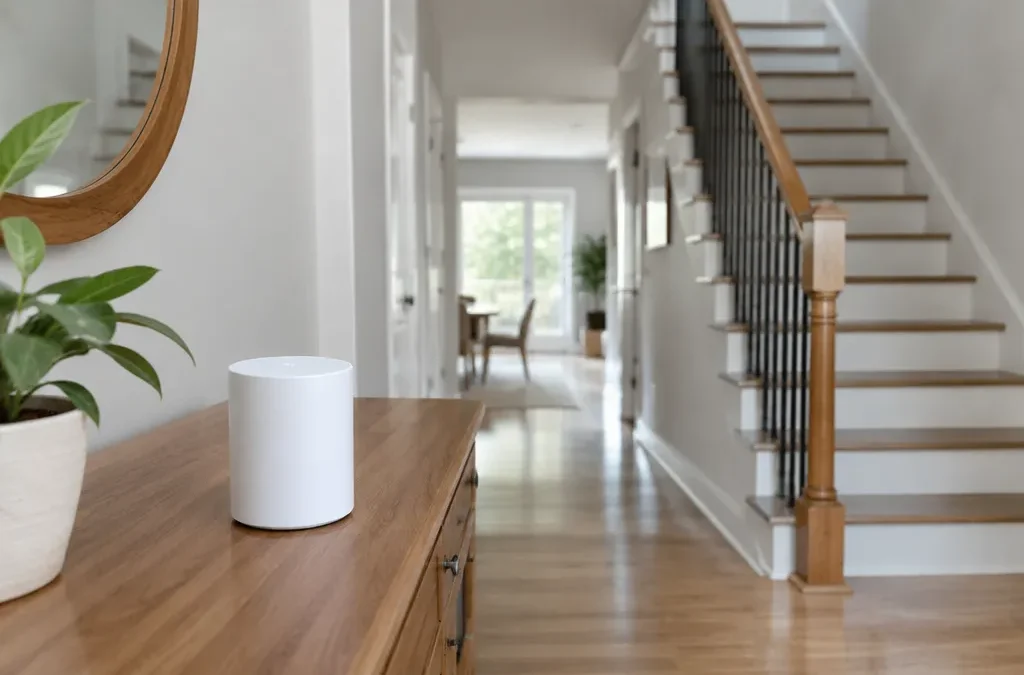
Mesh WiFi, also written mesh Wi-Fi, is a home network made of two or more wireless units, called nodes, that work together as one system. One node connects to your modem and acts as the main router. The other nodes spread around the house, link back to it, and broadcast the same network name and password, so your phone, laptop, and smart home devices move between them without you having to reconnect.
The goal is even coverage across a larger space than a single router can reach. A mesh WiFi system does not make your internet plan faster. It improves WiFi signal strength and consistency in the rooms where a single router struggles, such as upper floors, a basement, or rooms behind brick and concrete walls.
How a mesh WiFi network works
A mesh WiFi network has three parts:
- The main node: plugs into your modem or fiber terminal and handles routing, IP addresses, and the firewall. Some systems let you keep your existing router and run the mesh in access point mode.
- Satellite nodes: placed around the home, each one serves nearby devices and relays their traffic to the main node.
- Backhaul: the connection between nodes. Its quality decides how fast the far nodes can be.
Software coordinates the nodes. It picks channels, steers devices to the best band, and helps them move to a closer node when you walk through the house. Standards such as IEEE 802.11k, 802.11v, and 802.11r support this handoff by letting devices learn about nearby nodes and reconnect faster. For background on how wireless networks are built, see our introduction to wireless local area networking.
Backhaul: the part that decides speed
Wireless backhaul on a shared band
Basic dual-band mesh systems use the same 5 GHz radio both to serve devices and to talk to other nodes. Every packet that passes through a satellite is sent twice, once between the device and the satellite and once between the satellite and the main node. This roughly halves the available capacity on that band, and each additional wireless hop reduces it again.
Tri-band and dedicated backhaul
Tri-band mesh systems add a second 5 GHz radio or a 6 GHz radio. One of these radios can be reserved for traffic between nodes, so client devices and backhaul do not compete. WiFi 6E and WiFi 7 mesh systems often use the 6 GHz band for backhaul because it is wide and uncrowded, though its shorter range means nodes must be closer together. WiFi 7 systems can also use Multi-Link Operation to combine bands between nodes.
Ethernet backhaul
If your home has network cable between rooms, you can connect nodes with Ethernet. Wired backhaul removes the wireless relay step, gives each node full speed, and frees all radios for your devices. It is the most reliable option. Where there is no cable, some systems also support backhaul over existing coaxial cable (MoCA) or power lines, with variable results.
Mesh vs range extender vs access points
All three add coverage, but they work differently.
| Mesh WiFi system | Range extender | Wired access points | |
|---|---|---|---|
| How it connects | Wireless or wired backhaul, managed as one system | Repeats the router’s signal wirelessly | Ethernet cable to the router |
| Network name | One name for the whole home | Often a separate name, or the same name with weaker handoff | One name if configured |
| Roaming between units | Coordinated and automatic | Basic, devices may cling to a weak signal | Good with a controller or roaming support |
| Speed at far end | Good with tri-band or wired backhaul | Often half or less of the router’s speed | Full speed |
| Setup | App-guided, simple | Simple | Requires cabling and some configuration |
| Best for | Large or multi-floor homes | One weak room | Homes with Ethernet already in place |
Mesh WiFi extender vs a regular extender
The terms overlap. A traditional WiFi extender is a single device that listens to your router and rebroadcasts the signal. It works with almost any router, but it usually repeats on the same radio, which cuts speed, and your devices may not switch to it smoothly. A mesh extender, sometimes called a mesh satellite or mesh point, is designed to join a specific mesh system or a router that supports mesh. It shares the same network name, is managed from the same app, and hands devices over automatically.
If you only need to fix one dead corner and your router works well otherwise, a regular extender can be enough. If several rooms are weak, or you want seamless roaming, a mesh system is the better fit.
Mesh WiFi router vs a single router
A mesh WiFi router is simply the main node of a mesh system, or a standalone router that can add mesh satellites later. Many routers sold today include this option. Whole home mesh WiFi systems are sold as kits of two or three identical units, for example Google Nest Wifi, Netgear Orbi, or TP-Link Deco, and internet providers often supply their own. A single high-power router can cover a compact apartment or a small single-story home just as well as a mesh system, often at lower cost.

EasyMesh: mixing brands
Most mesh systems only work with nodes from the same manufacturer, and often from the same product line. Wi-Fi EasyMesh is a Wi-Fi Alliance certification program introduced in 2018 to change that. In an EasyMesh network, one controller manages agents from different vendors, and certified products are meant to work together.
EasyMesh is common in routers supplied by internet service providers, which lets a provider’s router work with extenders from other brands. Support in retail mesh systems varies, so check the product specifications for EasyMesh certification if you want to mix equipment. The Wi-Fi Alliance publishes its list of certified products.
When you need mesh WiFi
A mesh system is worth considering when one or more of these apply:
- Your home is larger than about 2,000 to 2,500 square feet, or spread over several floors
- The router sits at one end of the house or in a basement and cannot be moved
- Walls are brick, stone, or concrete, or floors have metal or underfloor heating
- Video calls drop or buffer in certain rooms while working fine near the router
- You want WiFi in a garage, garden office, or patio
A mesh system is often unnecessary in an apartment or small home where one well-placed router already covers every room. Before buying anything, try moving the router to a central, elevated spot. That alone fixes many coverage problems.
Keep in mind which band does the work. The 2.4 GHz band reaches farther but is slower and more crowded. The 5 GHz band is faster but weaker through walls, and 6 GHz has even shorter range. Mesh nodes help most with 5 GHz and 6 GHz coverage, while many IoT devices such as smart plugs and security cameras stay on 2.4 GHz. Our guide to the best 5 GHz WiFi channel explains the trade-offs between bands and channels.
Benefits and disadvantages of mesh WiFi
The main advantage is consistent coverage with one network name and automatic handoff, which suits phones, laptops, and smart home devices that move or sit far from the router. Setup is usually done in a phone app, and many systems update their firmware automatically.
The disadvantages are real, though:
- Cost: a mesh kit with two or three units usually costs more than a single router with similar specs.
- Speed loss over wireless hops: on dual-band systems, performance drops at each satellite.
- Less control: many consumer systems hide advanced settings such as channel choice or separate SSIDs for each band, which some IoT devices need to connect on 2.4 GHz.
- Vendor lock-in: without EasyMesh, you can only add nodes from the same brand.
- More devices to power: each node needs an outlet in a useful spot.
Can you use mesh WiFi with your existing router?
Yes, in two common ways. You can connect the main mesh node to your old router and switch the mesh system to access point or bridge mode, so the old router keeps handling routing and the mesh only provides WiFi. Or you can put your provider’s modem-router combo in bridge mode and let the mesh system do all routing. Running both as routers at the same time creates “double NAT”, which can cause problems with gaming, video calls, and remote access. If your provider’s router supports EasyMesh, you may also be able to add compatible nodes to it directly.
Will mesh WiFi go through walls?
Mesh WiFi uses the same radio signals as any other router, so walls weaken it in the same way. Drywall and wood cause little loss. Brick, stone, concrete, metal, and mirrors cause much more, and the 5 GHz and 6 GHz bands are affected more than 2.4 GHz. A mesh system does not push signals through walls. It gets around them by placing a node on the other side, so each device only has to reach the nearest node.
How many mesh nodes do you need?
A rough starting point is one node for every 1,500 to 2,000 square feet of living space, adjusted for floors and wall materials:
- Apartment or small single-story home: one router, or two nodes if walls are thick
- Medium home or two floors: two to three nodes
- Large home, three floors, or detached garage and garden: three or more nodes, ideally with at least one wired
More nodes are not always better. Extra wireless nodes add hops and interference, which can lower performance. Start with fewer, check signal strength in each room, and add a node only where coverage is still weak.
How to set up a mesh WiFi network
- Connect the main node to your modem with an Ethernet cable and power it on.
- Install the manufacturer’s app on your phone and follow the setup steps to create the network name and password. Reusing your old network name and password lets most devices reconnect without changes.
- Place the first satellite halfway toward the weak area and add it in the app.
- Check the backhaul signal for each node in the app and adjust placement if it is weak.
- Run a speed test in the rooms you use most and move nodes if needed.
Mesh node placement tips
- Start near the modem. Place the main node where your internet connection enters the home, ideally in an open area rather than a closet.
- Go halfway, not all the way. Put each satellite roughly between the main node and the dead zone, where the signal is still good. A node in a dead zone has nothing strong to relay.
- Keep hops short. As a rough guide, keep nodes within one or two rooms of each other, with no more than two walls between them.
- Raise them up. Shelves and desks work better than the floor. Avoid placing nodes behind TVs, inside cabinets, or next to mirrors, aquariums, and large appliances.
- Stack floors vertically. In a multi-story home, place nodes roughly above or below each other and near stairwells.
- Use the app. Most systems show the backhaul signal for each node. If a node reports a weak link, move it closer.
- Use a cable where you can. Even one wired node improves the whole network.
Mesh WiFi and WiFi standards
Mesh systems are available for WiFi 5, WiFi 6, WiFi 6E, and WiFi 7. Older devices connect to newer systems without problems. The WiFi generation affects backhaul capacity and how well the system handles many devices, so a newer generation helps most in busy households and with wireless backhaul. For an overview of the generations, see our page on 802.11 standards and our introduction to WiFi technology.
Checklist
- Mesh WiFi uses several nodes that act as one network with one name.
- Backhaul decides speed: Ethernet is best, dedicated tri-band wireless is next, shared dual-band is slowest.
- Choose a range extender for one weak room, mesh for several, and wired access points if cabling exists.
- Look for EasyMesh certification if you want to combine brands.
- Place satellites halfway to the dead zone, elevated, and within one or two rooms of the next node.