
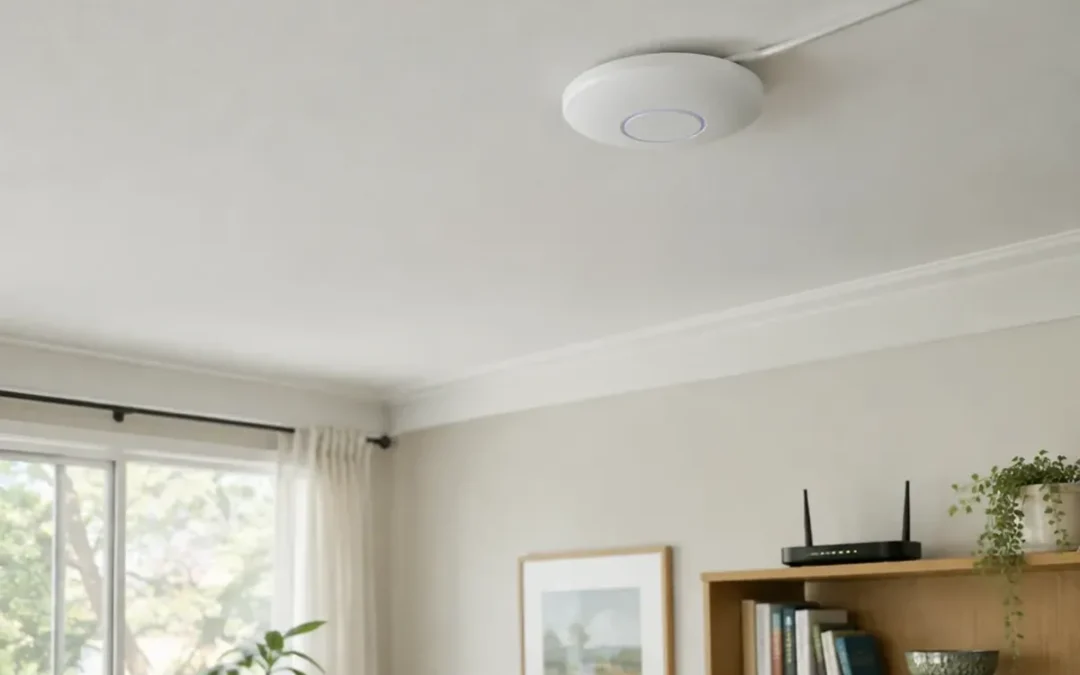
Understanding the core difference between an access point and a router comes down to one distinction: a router directs IP packets between different networks and assigns IP addresses, while a wireless access point acts as a Layer 2 bridge that connects wireless devices to an existing wired network. In home networks, these functions are almost always combined in a single enclosure, leading many to equate the two devices. If you only need more coverage, add access points to your existing router instead of a second router, because a single wireless router does not scale efficiently as demands grow.
Access Point vs Router: The Architectural Differences
A wireless router operates at Layer 3 (Network Layer) and acts as the gateway between your local network (LAN) and the internet. In contrast, an access point operates at Layer 2 (Data Link Layer), moving frames between its wireless radio and its Ethernet port without assigning IP addresses or performing routing.
A network requires exactly one router per internet connection; adding an unconfigured second router creates a second NAT layer and difficult-to-diagnose errors. Conversely, access points scale horizontally: multiple units can be added for coverage and density, and every access point bridges into the same address scheme.
| Feature | Wireless Router | Standalone Access Point |
|---|---|---|
| OSI Layer | Layer 3 (Network) & Layer 2 (Data Link) | Layer 2 (Data Link Bridge) |
| IP Address Assignment | DHCP Server (RFC 2131) built-in | None (forwards requests to router) |
| Network Address Translation | Yes (NAT per RFC 2663) | No NAT functionality |
| Port Configuration | Dedicated WAN port plus LAN switch ports | LAN uplink (no WAN port) |
| Power Delivery | Power adapter | Power over Ethernet (PoE) via switch or injector |
| Typical Client Capacity | Moderate home loads | 100–250 devices (1,000+ on high-end Wi-Fi 6/7) |
What Is a Wireless Access Point?
A wireless access point is a Layer 2 bridge that transmits IEEE 802.11 wireless traffic onto an existing wired Ethernet network. Conceptually, an access point functions much like an Ethernet hub, but instead of forwarding frames only to other 802.3 stations, it forwards 802.11 frames to all other 802.11 or 802.3 stations on the same subnet. From the router’s perspective, an access point connected via an Ethernet cable looks like any other wired device on the network.
Business access points are typically mounted on ceilings and connected to a switch via a single Ethernet cable for both data and Power over Ethernet (PoE), managed centrally via a dashboard or controller. Typical indoor range is approximately 30 to 50 meters, though walls, shelving, and metal machinery reduce this range. Many business access points support 100 to 250 concurrent connections, with high-performance Wi-Fi 6 and Wi-Fi 7 models designed for 1,000 or more devices. Business access points also support VLAN-based segmentation to isolate guest, employee, IoT, and point-of-sale (POS) traffic.
What Is a WiFi Router?
A WiFi router is a two-in-one device combining the function of an access point with the capabilities of an Ethernet router to forward IP packets between subnets, serving as the gateway between a LAN and the internet. Most WiFi routers include a basic firewall powered by Network Address Translation (NAT per RFC 2663), a four-port Ethernet switch, and a DHCP server operating under RFC 2131.
While a WiFi router can be considered an access point because it contains AP functions, an access point can never be a router. A wireless router handles moderate demand in homes and small organizations, handling routing, NAT, and IP address assignment.
Access Point vs Extender and Repeater: Why Wired Backhaul Wins
The fundamental difference between an access point and a repeater or extender is the backhaul method: a true access point uses a wired Ethernet connection back to the network, avoiding throughput loss and half-duplex airtime contention.
- Throughput Retention: In testing, a wired access point delivers approximately 95% of router throughput. A single-band repeater drops throughput to roughly 40% to 50% because its single radio must split airtime between receiving data from the router and transmitting to client devices. Dual-band extenders reduce this penalty by dedicating separate bands to the router backhaul and client devices, but throughput loss remains.
- Latency Impact: A wired Ethernet backhaul adds less than 1 millisecond of latency. A repeater adds 25 to 40+ milliseconds of latency, while a mesh node with a dedicated wireless backhaul adds 12 to 15 milliseconds.
- Sustained Throughput: Independent testing by Ars Technica confirms that wired multi-AP setups outperform wireless mesh systems in throughput. Systems marketed as access points that rely on wireless uplinks are more accurately described as mesh nodes or extenders.
Power over Ethernet (PoE) and Seamless Client Roaming
Standalone business access points draw operating power over the Ethernet cable via Power over Ethernet (PoE). If a switch does not support PoE, an inline PoE injector can be placed between the switch and the access point, matching PoE standards or using PoE++.
- 802.3af (PoE): Delivers up to 15.4 W per port.
- 802.3at (PoE+): Delivers up to 30 W per port.
- 802.3bt (PoE++): Delivers up to 60 W (Type 3) or 100 W (Type 4) per port. High-performance Wi-Fi 7 access points typically require PoE+ or PoE++, and Wi-Fi 6/7 units often utilize 2.5 Gbps Ethernet uplinks that require more than the 15.4 W provided by basic PoE.
When multiple access points share the same SSID, password, and security level, wireless clients can roam between them. Without roaming optimization (such as 802.11k and 802.11r), the client disconnects from the old access point before connecting to the new one, creating noticeable interruptions during VoIP calls and video streaming. IEEE 802.11k enables clients to request a “Neighbor Report” from their current access point with details on neighboring APs and channels, shortening the scanning phase. IEEE 802.11r (Fast BSS Transition) pre-authenticates encryption keys across APs, reducing roaming handover time from several hundred milliseconds down to 40 to 50 milliseconds. Apple devices support 802.11k and 802.11r; Intel-based Mac computers do not support Fast BSS Transition, but interoperate with FT networks.
How to Turn an Old Router into an Access Point
Most wireless routers feature an access point or bridge mode, and routers without a dedicated mode (such as the TP-Link TL-WR840N) can be configured manually as an access point. Here is how you do it:
- Connect to Interface: Connect your computer to the secondary router and open its admin interface.
- Assign a Static LAN IP: Set a local IP address within the primary router’s subnet, but strictly outside its active DHCP range.
- Disable DHCP Server: Turn off the DHCP server on the secondary router so that only the primary router assigns IP addresses.
- Configure Wireless Settings: Set the SSID and password.
- Connect LAN to LAN: Connect an Ethernet cable from a LAN port on the primary router to a LAN port on the secondary router. Never use the secondary router’s WAN port.
As documented by TP-Link, switching to AP mode disables gateway-dependent features including Parental Controls, Quality of Service (QoS), Bandwidth Control, NAT Forwarding, IPv6, and VPN, because the WAN port is no longer utilized.
How Many Wireless Access Points Do You Need for Your House?
How many access points you need depends heavily on your wall materials, which have twice the impact of raw floor area on 5 GHz coverage. A drywall partition causes approximately 4 dB of attenuation at 5 GHz, whereas a solid concrete wall introduces approximately 20 dB of attenuation.
- Drywall Construction: 1 access point per 60 to 80 m² (650 to 860 sq ft).
- Brick Construction: 1 access point per 40 to 55 m² (430 to 590 sq ft).
- Concrete Construction: 1 access point per 30 to 40 m² (320 to 430 sq ft).
For a 2,000-sq-ft home (approximately 185 m²), plan for two access points in drywall construction, three in brick, and four or more in concrete buildings. Vendor guidelines provide additional benchmarks: Ubiquiti plans for one access point per 1,000 sq ft (93 m²), rounded up, with at least one AP per inhabited floor. Cisco recommends an AP density of one unit per 1,000 to 2,000 sq ft (92 to 185 m²) with a typical spacing of 36 to 50 feet (11 to 15 meters). For an office, check both area and capacity: an office with 35 employees across 280 m² of drywall requires 3 access points based on floor area (280 ÷ 100 = 3), which exceeds the capacity calculation (35 ÷ 20 = 2), so the higher figure of 3 APs is selected.
Common Myths and Costly Setup Mistakes
- The Maximum Transmit Power Trap: Setting access point transmit power to maximum is a common mistake. A smartphone typically transmits at approximately 15 dBm, while an AP set to maximum transmits at 23 dBm. This creates areas where the client shows full signal bars but cannot maintain a connection. AP transmit power should be set to 17–20 dBm to prevent sticky clients.
- The Double NAT Blunder: Plugging an Ethernet cable into the WAN port of a second router without disabling its DHCP server creates a separate, isolated subnet. This causes double NAT issues that disrupt gaming, VPN connections, port forwarding, and local device discovery (such as printers and smart home hardware).
- The Single Multi-Story AP Assumption: Placing a single access point on the ground floor of a three-story house leaves upper floors with poor coverage because reinforced concrete floors and ceilings are virtually impenetrable to Wi-Fi signals. At least one access point per floor is required.
- Inadequate Overlap Planning: Sophos recommends maintaining a 10 to 15 dBm signal overlap between adjacent access points: if the roaming RSSI threshold is –70 dBm, the next access point should provide at least –60 dBm at that location to ensure reliable roaming.
Frequently Asked Questions
What is a wireless access point?
A wireless access point is a Layer 2 bridge that connects wireless devices to an existing wired Ethernet network. It moves frames between its radio and Ethernet interface without routing traffic or assigning IP addresses.
What is a wifi router?
A wifi router is a two-in-one networking device combining an Ethernet router and an access point. It routes IP packets between subnets, acts as the gateway between a LAN and the internet, and typically includes a DHCP server, a multi-port switch, and a NAT-based firewall.
What are the disadvantages of using a wireless access point?
The primary disadvantage is that an access point requires physical Ethernet cabling for optimal performance, which can be costly and labor-intensive to install. In addition, an access point cannot provide internet access or routing on its own without an upstream router, and excessive transmit power or poor placement can create co-channel interference and roaming issues.
Is an access point a router or switch?
An access point is neither a router nor a switch in the strict sense; it operates as a Layer 2 bridge between wireless (802.11) and Ethernet (802.3) networks on the same subnet.
Is it better to use an access point or a router?
A single wireless router is sufficient for small homes or single-floor offices with moderate demand. For larger buildings, structures with dense walls, or environments with many concurrent users, using a separate router paired with multiple wired access points provides superior coverage and scalability.
How many wireless access points do I need for my house?
Plan for roughly one access point per 60 to 80 m² (650 to 860 sq ft) in drywall, one per 40 to 55 m² (430 to 590 sq ft) in brick, and one per 30 to 40 m² (320 to 430 sq ft) in concrete construction, with at least one AP per floor.