
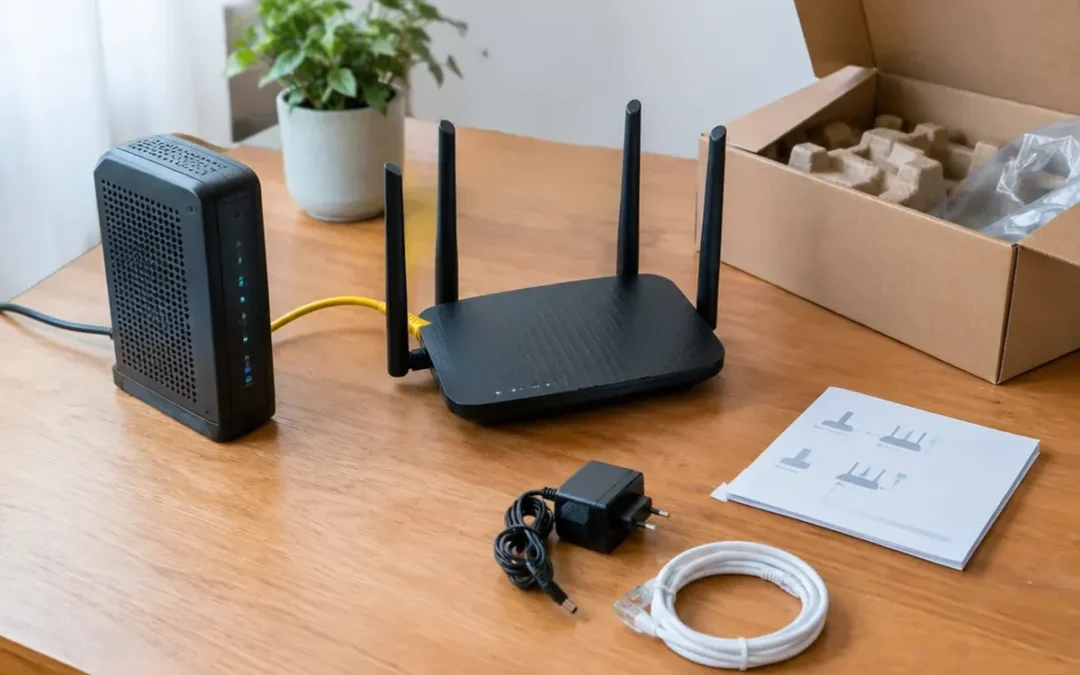
To set up a router, make a few connections in the right order: bring the modem online, connect its Ethernet cable to the router’s WAN port, then use the router’s local setup page or app to name and secure your WiFi.
Know which box brings internet in and which shares it
A modem connects your home to your internet service provider by translating the provider’s signal into digital data. A router takes that connection and creates a local area network (LAN) so multiple devices can use it. With separate devices, the router has no internet signal to distribute until it is connected to the modem.
You may have a gateway instead. That is one box that combines the modem and router roles. In that case, use its own setup instructions or app; there is no separate modem-to-router Ethernet connection to make.
How to set up a router with the right cable and startup order
- Check the modem connection. For cable internet, the coaxial connection must be working before the modem can receive a signal.
- Power on the modem first. Wait until its Online light is steady. This usually takes 2 to 5 minutes; a first startup can take 10 to 15 minutes while the modem receives firmware.
- Connect modem to router. Run Ethernet from the modem’s LAN port to the router’s port labeled WAN or Internet. It is often a different color. Do not plug the modem into one of the router’s numbered LAN ports.
- Power on the router. Then join its temporary WiFi network or connect a computer to a numbered LAN port with Ethernet.
- Enter provider settings if asked. In the setup wizard, select the required Internet Connection Type. Some providers require PPPoE credentials or a static IP address.
For a wired speed test, connect to a LAN port—not the WAN port.
Open your router’s setup page even before internet works
The router’s admin interface is a local web server. As long as your phone or computer is connected to that router by WiFi or cable, you can reach it without an active internet connection. Type the address into the browser’s address bar, not into a search field.
| Router maker | Common setup address |
|---|---|
| NETGEAR | routerlogin.net or 192.168.1.1 |
| TP-Link | tplinkwifi.net or 192.168.0.1 |
| ASUS | asusrouter.com |
Use the address printed on your router if it differs. Some newer routers have no browser admin page at all and are managed only through a phone app. Before trying to sign in, turn off any VPN or proxy on the device; either can prevent access to a local router address.
The default login information is commonly printed on the bottom or back label. Many current routers ask you to create an admin password during first-time setup. Do that immediately. This password protects the settings page and should not be the same as your WiFi password.
Give your WiFi a private name and stronger protection
Your WiFi name is its SSID, short for Service Set Identifier. Anyone within range can see it, so leave out your name, address, apartment number, or other personal details. An SSID can be up to 32 characters long; letters, numbers, hyphens, and underscores are the safest choices for compatibility with older devices.
For security, select WPA3-Personal when your router and devices support it. WPA3-Personal uses Simultaneous Authentication of Equals (SAE) rather than WPA2’s pre-shared key approach, which prevents offline password guessing. If an older device cannot join WPA3, WPA2/WPA3 Transition Mode can let both kinds of devices connect with the same password. Pure WPA3 provides the full WPA3 security benefit.
Choose 2.4 GHz or 5 GHz based on distance, not guesswork
Use 2.4 GHz when a device is farther away or has walls in between. It travels farther and handles walls better, though practical speeds are about 100 to 150 Mbps. Its three non-overlapping channels are 1, 6, and 11.
Use 5 GHz for a nearby laptop, TV, or other device that benefits from speed. With WiFi 5 or WiFi 6, it can exceed 500 Mbps and is less prone to interference, but its range is shorter. The same room or a clear line of sight is the best case.
Band Steering, sometimes called Smart Connect, lets the router select a band automatically. If you instead use separate names such as Home_2.4G and Home_5G, the connected SSID tells you which band you chose.
Check which band your device is using
On Windows, run netsh wlan show interfaces. A channel from 1 through 13 indicates 2.4 GHz; channel 36 or higher indicates 5 GHz. On a Mac, hold Option while clicking the Wi-Fi icon and check the channel number using the same rule.
Move the router before buying more hardware
Put the router 5 to 7 feet above the floor where the signal can spread into the home. In a two-story house, place it high on the ground-floor level so the signal has a path toward both floors. A router on the floor loses much of its signal into the floor.
Avoid closets, basements, the kitchen, the space behind a TV, and other enclosed spots. Keep it 2 to 3 meters (about 6 to 10 feet) away from microwaves, baby monitors, cordless phones, and Bluetooth devices; these can interfere with WiFi, especially on 2.4 GHz.
Finish the setup with updates, guests, and a wired test
Check for a firmware update before treating the job as finished. Firmware updates close known security vulnerabilities, and automated scans can exploit some published vulnerabilities within days or even hours.
Set up a guest network for visitors rather than sharing the main WiFi password. Use WPA2 or WPA3 and a separate guest password. Most importantly, set Allow guests to access my local network to off, so visitors’ devices stay isolated from your primary network.
For the clearest speed test, connect a computer by Ethernet to a router LAN port. Pause streaming and downloads on other devices, close background apps, and test several times at different times of day. Record download speed, upload speed, and ping; ping is measured in milliseconds, and lower is better. To see whether the router is a bottleneck, compare that wired-router result with a direct wired test at the modem under similar conditions.
Skip the common router setup myths and dead ends
“The setup page needs a working internet connection”
No. The admin page is local to the router. Your device does need to be connected to the router, but the modem can still be offline while you change WiFi settings.
“192.168.1.1 is broken if the page will not open”
Not every router uses that address. Another common issue is that a browser forces HTTPS while the router responds only over HTTP. If the router label specifies that address, enter http://192.168.1.1 explicitly in the address bar. Also make sure you are not on the guest network, which may intentionally block access to router settings.
“A 169.254.x.x address means I am connected”
It means the device did not receive a valid address from the router. Set the device’s network settings to obtain an address automatically through DHCP, then reconnect.
Frequently Asked Questions
What is the difference between a modem and a router?
A modem connects the home to the internet provider and translates the incoming signal. A router creates the local network and shares that connection among your devices. A gateway combines both jobs in one box.
How do I connect my router to my internet?
Turn on the modem and wait for its Online light to become steady. Connect Ethernet from the modem’s LAN port to the router’s WAN or Internet port, power on the router, and enter PPPoE or static-IP settings if your provider requires them.
How do I log in to my 192.168.1.1 router?
Connect to the router’s main WiFi or a LAN port, disable any VPN or proxy, and type the address into the browser address bar. Use the login details on the router label, then change the default admin password.
Why can’t I open the 192.168.1.1 address on my router?
Your router may use a different address, you may be on the guest network, or the browser may be forcing HTTPS. Try http://192.168.1.1 if that is the address on the label, and confirm that your device has an automatically assigned DHCP address rather than one beginning with 169.254.
How do I tell if I’m on 2.4 or 5 GHz?
With separate network names, the SSID often states the band. Otherwise, check the WiFi channel: on Windows, use netsh wlan show interfaces; on a Mac, Option-click the Wi-Fi icon. Channels 1–13 are 2.4 GHz, while channel 36 or higher is 5 GHz.
How much does it cost to set up a WiFi router?
Setting up a router yourself does not require a separate installation charge beyond the equipment. Router prices range from about $30 to more than $300, while professional home-network installation with configuration typically costs $100 to $600, depending on the home and number of access points.