
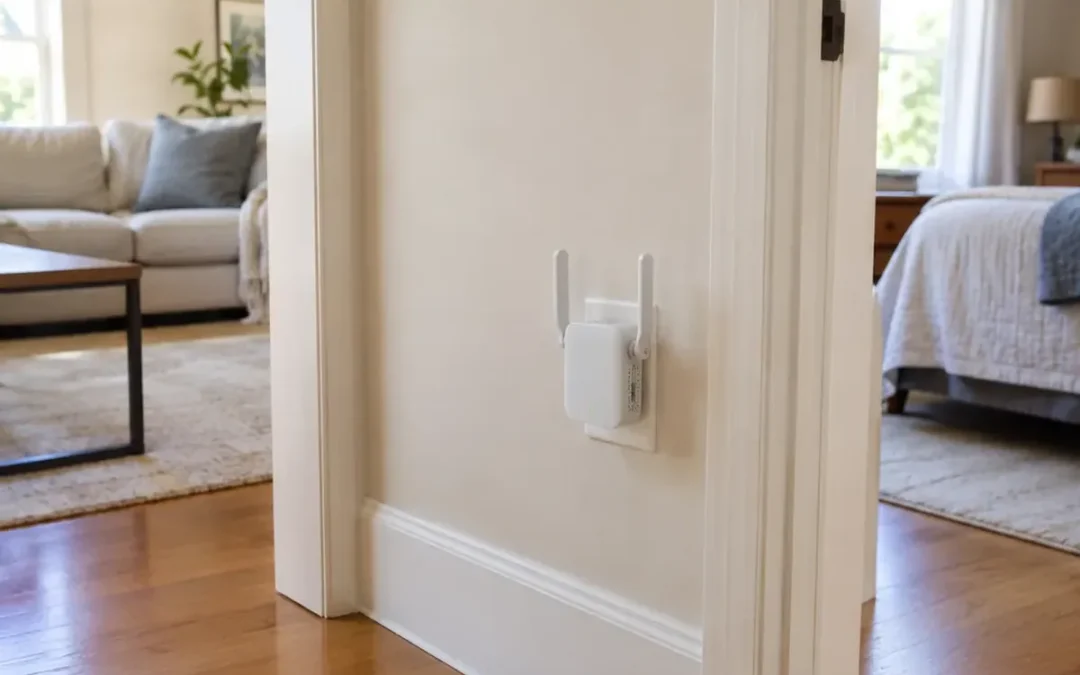
In the wifi extender vs booster question, there is usually no technical difference: “WiFi booster” is a marketing term with no standard behind it, “range extender” describes the goal of more coverage, and “repeater” describes how most of these devices actually work. What matters is not the label on the box but the backhaul, meaning how the device talks to your router: over the same wireless channel, over a dedicated band, or over a cable.
WiFi Extender vs Booster vs Repeater: Breaking Down the Industry Jargon
Manufacturers use network terminology inconsistently on retail packaging. For instance, NETGEAR labels its store category as “WiFi Boosters & Extenders,” while TP-Link classifies its RE550 as a “Dual-Band Wireless Repeater.” Because no standards body defines the term “booster,” a device sold under that label could technically be a repeater, an extender, a mesh node, an access point, or a powerline adapter.
Technically, a repeater describes a specific mechanism: it receives and transmits data on the same radio channel. In contrast, “range extender” describes the outcome of expanded coverage rather than a specific technology, with most retail products functioning internally as repeaters.
How Does a WiFi Extender Work?
A WiFi extender joins your primary router’s network as a client, much like a laptop, and broadcasts that connection from a secondary location as its own access point. Every time data moves between your device and the broader internet, the unit executes a three-step relay sequence:
- The extender associates with the router’s existing wireless network.
- It receives and decodes the radio frames transmitted from the source.
- It transmits the data in new frames over its own radio broadcast.
Consumer repeaters first appeared around 2003, coinciding with the ratification of the IEEE 802.11g standard that raised 2.4 GHz throughput to 54 Mbps. In testing by CableLabs, a true dual-radio extender improved minimal indoor signal strength (RSSI) by 17 dB (from -67 dBm to -50 dBm), whereas a single-radio repeater produced an 11 dB gain (reaching -58 dBm). That 6 dB gap equates to roughly doubling the usable coverage distance.
The Half-Duplex Penalty: Why Single-Band Repeaters Cut Bandwidth
All Wi-Fi radios operate in half-duplex mode: a single radio transceiver can transmit or receive frames at any given moment, but it cannot perform both simultaneously. Because a single-band repeater uses the identical channel for receiving traffic from the router and retransmitting it to your client device, every data packet must traverse the air twice. Under ideal operating conditions, this cuts throughput by roughly 50%.
On a 1 Gbps fiber internet tier, a single-band repeater operating two interior walls away from the router typically reaches a maximum of 200 to 250 Mbps in practice. By contrast, a dual-band extender operating in the same environment can deliver 750 to 850 Mbps. When comparing relative throughput against your main gateway, network architectures perform distinctly:
- Wired Access Point: Delivers approximately 95% of router throughput with under 1 ms of added latency.
- Mesh Node with Dedicated Wireless Backhaul: Retains roughly 70% to 80% of router throughput at the distant node.
- Single-Radio Repeater: Drops speeds down to 40% to 50% of the router baseline while adding 25 to 40+ ms of latency.
Dual-Band and Dedicated Backhaul: Keeping More of Your Speed
Dual-band models mitigate the speed penalty by splitting tasks across distinct frequencies. A dual-band extender typically assigns the 5 GHz band to the router uplink (backhaul) and the 2.4 GHz band to client devices, so the two links do not compete for the same channel airtime.
A dedicated backhaul permanently reserves an entire radio band strictly for traffic traveling between the extender and the primary router. This reduces throughput loss, but backhaul quality remains limited by distance and obstacles. Tri-band extenders feature a third radio transceiver often reserved completely for backhaul traffic. However, hardware capability varies: some dual-band units default to repeating each band onto itself (such as 5 GHz to 5 GHz), cutting speeds unless the firmware specifically supports dedicated backhaul or cross-band modes.
How Far Away Can a Wi-Fi Extender Be from the Router?
There is no fixed distance, as walls, floors, and building materials heavily influence range. The extender must be positioned where it receives a strong, stable signal from the router.
- External Antenna Units: Position the device roughly 25 to 40 feet (7.5 to 12 meters) away from the router in spaces with minimal physical obstructions.
- Internal Antenna Units: Position the unit approximately 20 to 35 feet (6 to 10.5 meters) from the router.
- Installation Height: Mount the extender approximately 4 feet (1.2 meters) off the floor, matching typical router elevation.
- Clearance from Interference: Keep the device clear of microwave ovens, cordless telephone bases, baby monitors, large mirrors, metal shelving, and aquariums.
- Positioning Rule: Always place the extender approximately halfway between the router and the target dead zone, never in the dead zone itself. If forced to choose, position the unit closer to the router rather than closer to the dead zone. An extender that receives a weak signal can only pass on that weak signal, no matter how many bars your device shows.
Setup and Compatibility: Step-by-Step Installation
An extender requires initial setup before it can connect to your network. Follow these steps:
- Update your primary router’s firmware.
- Record your router’s exact network name (SSID) and security password.
- Plug the extender into an electrical outlet situated within roughly 16 feet (5 meters) of the router for initial pairing.
- Launch the manufacturer’s mobile app or connect to the extender’s temporary default Wi-Fi network (WPS buttons also offer automated pairing).
- Select your primary network SSID and input your security password. When configuring 2.4 GHz parameters, assign channels 1, 6, or 11 to avoid overlap.
- Unplug the paired extender and relocate it to your permanent halfway position. Once plugged into mains power, the unit reconnects automatically.
Most universal extenders work with standard commercial routers across different brands, including using a dual-band extender with an older 2.4 GHz-only router (though performance remains constrained to 2.4 GHz parameters). Incompatibilities primarily arise with non-standard, modified, or outdated router firmware, or proprietary ISP models (such as Verizon WiFi Extenders) engineered strictly for carrier gateways. Furthermore, unified mesh roaming and a single network name require matching ecosystems like ASUS AiMesh or TP-Link OneMesh/EasyMesh.
Downsides and Common Extender Myths
Know these trade-offs before you buy:
- The Full Bars Fallacy: Signal bars indicate solely the link strength between your client device and the extender, not backhaul throughput. You can display maximum signal bars right next to an extender while experiencing sluggish loading speeds if the uplink to the router is degraded.
- The SSID Split: Many budget-tier units generate an auxiliary network name (e.g., “MyWiFi_EXT”). This forces manual network switching and can prevent smart-home hubs and IoT peripherals from communicating across separate networks.
- Latency and Jitter Penalties: An extra wireless hop adds 25 to 40+ ms of added latency along with jitter, making extenders suboptimal for real-time applications like online gaming or video calls.
- Apartment Congestion: In densely populated apartment buildings, introducing an active repeater adds another transmitting beacon into an already crowded radio spectrum, worsening channel congestion.
When an Extender Helps and When to Choose Alternatives
An extender is the right choice for a single weak room where the router provides a strong signal halfway. However, large floor plans and dense materials demand dedicated network architectures. Powerline adapters use a pair of modules to turn internal home electrical wiring into an alternative data conduit, bypassing wireless airwaves entirely, while wired access points connect directly via Ethernet cables without a wireless backhaul.
| Situation | Recommended Solution | Key Limitation |
|---|---|---|
| Single weak room with strong signal halfway | WiFi Extender | Must not be placed inside the dead zone itself |
| Dedicated home office or gaming setup | Wired Access Point or wired-backhaul mesh | Requires physical cable routing |
| Stationary client (console, smart TV) | Powerline adapter, MoCA, or direct Ethernet | Powerline throughput varies with home electrical wiring |
| Weak signal across multiple rooms or floors | Mesh Wi-Fi system or multiple Access Points | Chaining multiple extenders multiplies hop loss |
| Home footprint exceeding 3,000 sq ft (280 m²) | Mesh network with 3+ nodes or Access Points | A router plus one extender is usually not enough |
| Dense interior brick, stone, or concrete walls | Hardwired backhaul (Ethernet, MoCA, Powerline) | Wireless radio frequencies struggle to penetrate masonry |
Frequently Asked Questions
How can I improve my WiFi signal at home?
Before you buy hardware, try three free fixes: elevate your router to roughly 4 feet (1.2 meters) off the floor in an open central space away from cupboards and metal objects; test whether your devices can shift to the faster 5 GHz frequency band; and change your 2.4 GHz channel to non-overlapping channels 1, 6, or 11. Upgrading an aging, overloaded gateway to a modern Wi-Fi 6 or Wi-Fi 7 model can also resolve widespread dead spots more effectively than adding an auxiliary extender.
Do WiFi extenders work with any router?
Most universal extenders pair reliably with standard commercial routers across different brands. Exceptions occur if a router runs non-standard, modified, or outdated firmware, or if the unit is a proprietary service-provider model engineered exclusively for carrier-supplied hardware. Note that seamless single-SSID mesh roaming requires matching ecosystem protocols such as EasyMesh, AiMesh, or OneMesh rather than generic Wi-Fi pairing.
Do you just plug in a WiFi extender and it works?
No, an extender requires initial setup before it can transmit data. You must connect it to mains power near your router, access its settings through a companion app, web browser, or WPS pairing, and provide your existing network SSID and password. After completing this initial pairing, the device retains its configuration and can be moved to its permanent halfway location, where it reconnects automatically.
What are the downsides of Wi-Fi extenders?
The primary drawbacks include a 50% throughput reduction on single-radio hardware due to half-duplex relaying, an added 25 to 40+ ms of transmission latency and jitter that impacts gaming and video calls, separate network names (SSIDs) that complicate smart-home communication, and total performance dependency on the radio signal quality available at the extender’s mounting location.